

In ClickUp, use automations for predictable “when this happens, do that” steps, AI fields for small judgment calls about a single task, Super Agents for work that has to search your workspace or check another tool, and Claude when you’re already working in Claude or doing a one-time bulk job. Automations don’t use AI credits, and AI fields use far fewer than Super Agents, so start with the simplest tool that does the job.
A client opened our training call this week with a confession.
Her recruiting team was in the busiest stretch of the year, everyone hiring before Black Friday, and ClickUp was holding up beautifully. So she’d started asking ClickUp’s AI agents to do pretty much everything for her. Then she looked at her AI credits.
Her question was a good one: when should something be an automation, when should it be AI, and when should she go to Claude instead?
I’m hearing some version of that question a lot now that ClickUp has AI tucked into almost every corner. Here’s how I think about it, using real examples from my 1:1 client work: a recruiting agency, a business consultant who runs quarterly planning days, and an interior design studio.
The short version
- Automations handle “when this happens, do that.” Predictable steps that follow a rule.
- AI fields make a small judgment call about one task.
- Super Agents handle work that needs to search across your workspace, connect information, reason through something, pull in info from other tools.
- Claude is for when you’re already working in Claude, or doing a big one-time job like a data cleanup or migration.
And one option people forget: sometimes a few seconds of manual work is the best tool you have.
Start with automations
An automation is a simple rule. When a task is created, or a status changes, or a field is filled in, ClickUp does something for you. You can add conditions too: if this happens, and only in this situation, then do that.
Most of what a service business needs fits that pattern. And automations don’t touch your AI credits, and it’s rare that I see a business run out of their monthly allowance.
Here’s what that looked like for my recruiting client. Her recruiters work in small pods, a junior and a senior person together. The junior recruiter often finds the candidate, but the senior recruiter needs to stay in the loop. She had an AI agent reading a dropdown and assigning people based on it.
Instead, I suggested a people field for the senior recruiter and an automation that adds them as a follower on the task. A follower gets the notifications and updates without being the person assigned to do the work. Same result, but uses automations and not AI credits.
The interior design studio had a similar need. When an item moves into procurement, the team wants to see it on that list. That’s an automation too: when the stage field changes, move the task to the procurement list. Nothing to figure out, so no AI needed.
Use AI fields for small judgment calls
ClickUp lets you turn some fields into AI fields, which fill themselves in based on a short prompt. They read what’s on the task (the title, description, comments, other fields, dates) and fill in an answer.
There are two kinds I use most:
- AI dropdowns pick one option for you. For example, “Budget Specified” or “No Budget Info” based on whether a dollar amount shows up in the task. Or a quick health check: Clear, Needs Info, or Blocked.
- AI text fields write something short. A “client update” field with the prompt “summarize the latest comments into 3 bullets for the client” turns a long comment thread into something you can paste into an email.
- AI assignee field can auto assign certain work to certain people. You could tell it, “If this is a marketing role, assign it to Meagan,” and it will.
AI fields use far fewer credits than Super Agents, so they’re a good middle ground when a rule isn’t quite enough but you don’t need a full agent. They also pair well with automations: a trigger can cause an AI field to be refreshed.
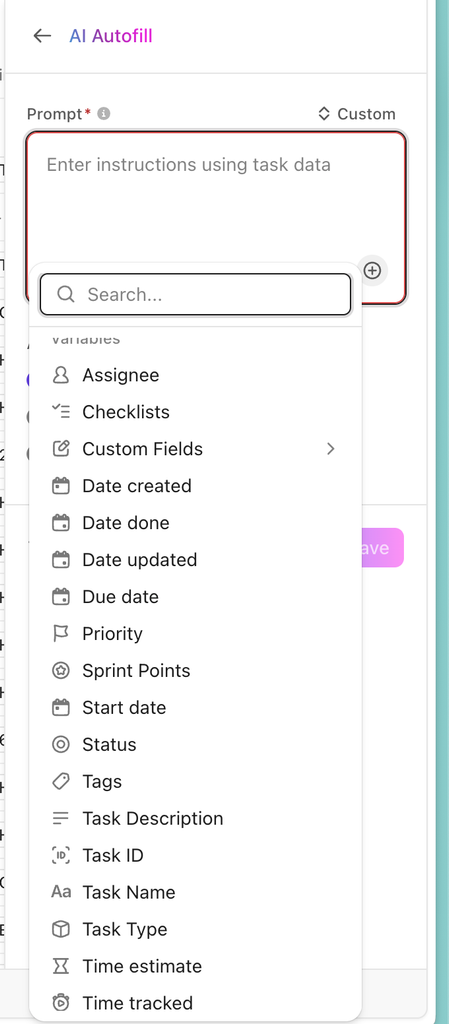
The tradeoff is that they only see what’s on that one task. They can’t pull in info from parent tasks or other items in your workspace. You can, however, use info from that task in your prompt. Here’s a list of fields available:
A few things that make AI fields more accurate: keep the options few and clearly different from each other, tell it exactly what to look for, and test it on several tasks before you trust it. I go into setup, prompts and more examples in The Complete Guide to ClickUp AI Fields.
Save Super Agents for work that needs to look everywhere
Automations are linear. Something happens, a condition is checked, an action runs. They can’t go searching through your workspace or check another tool.
Super Agents can. They’re the right choice when the job is connecting one part of ClickUp to another, pulling in information from somewhere else, or finding something you didn’t know to look for.
Here’s what that looks like in real client workspaces:
- Spotting repeat customers. One client does repeat work for the same customers and properties, but customers don’t always mention that they’ve worked together before. When the team adds a new customer, a Super Agent searches past records for a matching address or email and gives them a heads up: you were here two years ago. No automation could do that, because it has to search everything.
- Catching cancellations ClickUp can’t see. My consulting client books calls through Calendly. ClickUp’s Calendly automation can only react when a call is booked, not when one is canceled. So every Sunday evening, a Super Agent checks Calendly for canceled calls, finds the matching call in ClickUp by email and original time, and marks it canceled.
- Time blocking in Outlook. The interior design studio owner runs her day from her Outlook calendar, so if her ClickUp tasks aren’t there, she won’t see them. Dragging each task onto the calendar by hand was just double work. Now a Super Agent runs every night at 7 PM and schedules each person’s tasks onto their calendar. It looks at due dates, priorities, time estimates and open time, then places work in the right blocks: client design work Tuesday through Thursday, and her finance, admin, marketing and business development work on Mondays and Fridays. Tasks without a time estimate get 30 minutes, and anything it can’t fit gets flagged instead of quietly left off. Anyone can still run it by hand when the day changes.
- Building agendas from tagged items. The same studio also wants their job site and workroom visit agendas to build themselves. Once each item has a field saying where it’s headed, a Super Agent can gather everything tagged for the next visit into the agenda doc. That’s about 30 minutes of admin each time that can go back to design work.
- Drafting the weekly update. The same studio is planning an agent that reviews each project on Thursday night, drafts a status email from a template they’ve written, and leaves a task for Friday morning to review and send.
You can also combine the two. Let an automation watch for the trigger and only call in the Super Agent when a certain condition is met. That way the agent only runs when it’s actually needed.
Keep a person in the loop
The Super Agents that work best for my clients don’t have the final say on anything that matters – yet. First, we monitor their work and make any adjustments. Once we’re confident with their work, we let them run on their own, but the first step is always to keep a human-in-the-loop.
You can also build in safeguards. One of my client’s agents once hit an error and kept retrying the same job every 30 minutes. Nobody noticed for 12 hours. Now her agents change a task’s status to “issue” when they’re stuck, so it’s easy to spot. I also suggest clearing your ClickUp inbox twice a day so agent questions don’t pile up.
One more credit tip: be careful with backfills. My recruiting client has almost 2,000 candidates, and asking an agent to update every one of them adds up fast. Give it limits, like skipping records that haven’t been active since a certain date to avoid using up your credits.
The agent that ran 144 times in three days
My recruiting client had a Super Agent that added the client name to new subtasks in her roles list, so her team could see which client each role belonged to. It worked. But when we looked at her usage, it had run 144 times in the first three days of the month, long after her migration was finished.
It was running because she was adding around 30 subtasks a day as her own to-do list. Every single one triggered the agent.
Instead of using up a ton of credits, we decided to switch to an automation and turned the agent off. It’s still there if she ever wants it back. The agent wasn’t doing anything wrong. It just wasn’t the right tool for that job.
My consulting client made the same kind of call on her own. We’d planned to automate creating her clients’ OneDrive folders, until she pointed out it takes her 30 minutes once a year. We dropped it. Not everything needs a fancy AI-automated system.
Where Claude fits
I use Claude alongside ClickUp, but not to run the day-to-day inside it.
If I’m already working in Claude, it’s easy to say “create a task for this” or “find all of these tasks and update them.” Claude can also be a real help with bigger one-time projects, like cleaning up or moving data.
The difference from a Super Agent is who starts the work. In Claude, you ask each time. A Super Agent is a repeatable process that runs on its own schedule or trigger, inside ClickUp.
There’s a cost question here too. ClickUp gives you a set number of AI credits based on your plan and number of seats, and you may be paying for Claude separately. It’s worth thinking about where each one earns its keep, rather than using both for the same things.
Check your AI usage every week
ClickUp now shows you where your AI credits are going. I’d look at it at least once a week while you’re getting set up. To reduce your credit usage:
- Turn off the AI notetaker if you use a different notetaker
- Review when your AI Agents are running and adjust the schedule as necessary
- Check for AI fields and dashboard cards that aren’t being used and remove them
None of those are bad features. The question is just: do you want this to use your credits? If yes, great. If not, turn it off.
ClickUp is also changing its AI and automation features often, so what’s available on your plan may look a little different by the time you read this.
A quick way to decide
| Ask yourself | Try this |
|---|---|
| Can I describe it as “when X happens, do Y”? | Automation |
| Does it need a small decision or summary about this one task? | AI field |
| Does it need to search across the workspace or check another tool? | Super Agent |
| Should it run on a schedule without anyone asking? | Super Agent, with a person reviewing the result |
| Am I already working in Claude, or doing a one-time bulk job? | Claude |
| Would it take a few seconds to do by hand? | Maybe just do it by hand |
Frequently asked questions
Do ClickUp automations use AI credits?
No. Automations count against a separate monthly automation allowance, and most small businesses don’t come close to using it up. AI fields, Super Agents, the AI note taker, and AI dashboard cards are what use AI credits.
What’s the difference between an AI field and a Super Agent?
An AI field fills in one field on one task from a short prompt, mostly using what’s already on that task. A Super Agent can search across your whole workspace, check other connected tools, and run on a schedule or trigger. AI fields use far fewer credits, so try one first when the job only involves a single task.
What’s the difference between chatting with ClickUp’s AI and a Super Agent?
Chatting is a one-off: you ask, it answers, and you have to ask again next time. A Super Agent is a repeatable process you set up once, and it does the job on its own whenever its trigger or schedule comes around.
Can Claude create and update ClickUp tasks?
Yes. Once Claude is connected to your ClickUp, you can ask it to create tasks, update them, or find and change a batch of tasks at once. It works as the person who connected it, so its changes show up under that person’s name.
How do I see where my ClickUp AI credits are going?
ClickUp has an AI usage view that shows which features and agents used your credits. Check it weekly while you’re getting set up, and turn off anything you didn’t mean to pay for.
If your ClickUp has AI running in places you’re not sure about, or you suspect you’re spending credits on work an automation could handle, I’m happy to look at it with you.
let’s make work lighter