

This post contains affiliate links. If you sign up through them, I may earn a small commission at no extra cost to you.
ClickUp now has three ways to automate work. Native automations handle simple “when this happens, do that” rules and don’t use AI credits. Super Agents are AI teammates for work that needs judgment. Workflows, ClickUp’s newest feature, connect agents, rules, and human approvals into one multi-step automated process. Start with native automations, add Super Agents where judgment is needed, and use Workflows when a whole process has several steps or handoffs.
Updated November 2026
Automations are the topic I get asked about most. They’re also where a lot of ClickUp workspaces go sideways, because many businesses start automating before the foundation is in place.
ClickUp’s automation options have grown a lot. Native automations are still the foundation, but there are now Super Agents for work that needs judgment, and brand-new Workflows that tie it all together. This guide covers how to set up a native automation step by step, which automations are worth starting with, and when to reach for Super Agents or Workflows instead.
Before you automate: business first, process second, technology third
Think of your ClickUp workspace like a filing cabinet. Before you can file that stack of paperwork, you need folders, and you need them labeled. Automations work the same way. They can only move work through a structure that already exists.
Before you build any automation:
- Document every step of the process. There are almost always more steps than you think, and you’ll usually find one that’s missing or could be simpler. A simple list, spreadsheet, or whiteboard works for documentation. Or record a ClickUp Clip and ask Brain to document it. Involve the people who do the work, since they know where things get stuck.
- Decide how the process should live in ClickUp. Tasks, subtasks, checklists, statuses, custom fields, and relationships. Keep it as simple as your team can follow.
- Pick the steps worth automating. Changing an assignee, moving a task, updating a custom field, or adding a comment when something happens are perfect things to automate.
- Know what you’re trying to fix. Saving time, preventing things from falling through the cracks, and keeping clients informed all lead to different automations.
From my client work: one client had a messy process for scheduling monthly review sessions with their clients. The meetings weren’t happening consistently, and they were at risk of losing clients because of it. We looked at where things were falling through the cracks, simplified the process, and then automated a few of the steps with ClickUp automations. Now those meetings get scheduled every month.
If you’re automating a process that isn’t defined yet, the automation just makes a mess happen faster. I walk through the full setup order in How to Set Up ClickUp for Your Business.
Native ClickUp automations
What is a ClickUp automation?
An automation combines a trigger, optional conditions, and one or more actions.
- Trigger: what has to happen to start it. Think of pressing “start” on your dishwasher.
- Condition: what has to be true for it to run, like “only run if dishwasher is full.” (would be great if this really existed!)
- Action: what ClickUp does automatically, like assigning the task or moving it to another list (like your dishwasher beeping or turning on a light when it’s done).
Native automations run entirely inside ClickUp, and they don’t use AI credits, just automation credits. For most service businesses, they handle the majority of what needs automating.
How to set up a native automation in ClickUp
- Open the right location. Go to the List, Folder, or Space where the automation should apply.
- Open Automations. Click the Automations button in the top right.
- Add an automation. Start from a pre-built template, or build a custom one.
- Choose your trigger. Common ones: when a task is created, when status changes, when a custom field changes, or when a due date arrives.
- Add conditions (optional). Narrow when it runs, like “only if Service Type is Retainer.”
- Add your actions. Assign the task, change the status, move it to another list, apply a template, post a comment, or send an email.
- Create it, then test it. Run a sample task through before your team relies on it.
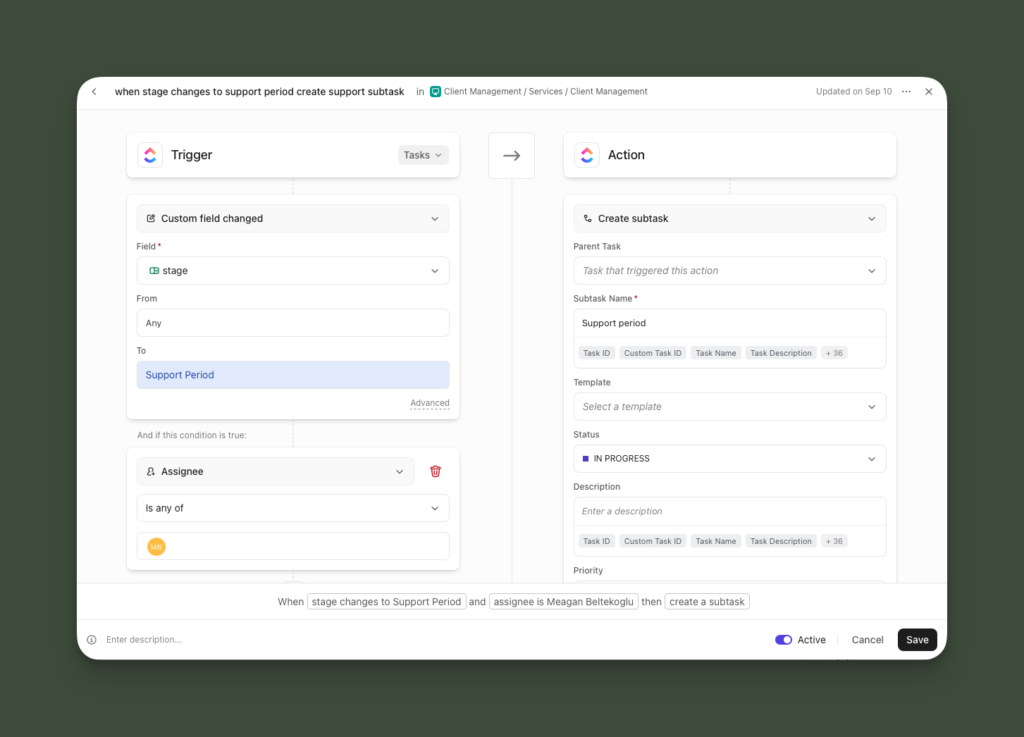
Example: automate client onboarding
Trigger: when the custom field “Contract Signed” changes to Yes
Actions:
- Move the task to your Client Onboarding list
- Assign it to the person who handles onboarding
- Set the due date for tomorrow
- Apply your onboarding task template
- Send the client a welcome email
With just one automation, no one has to remember the five steps to onboard a client anymore.
Newer automation features worth knowing
ClickUp keeps adding to its automations. A few recent additions that are useful for service businesses and agencies:
- Create Lists from templates: an automation can now create a whole new List from a template, so every new client or project starts with the right tasks, views, and timeline.
- Google Drive automations: create Google Drive folders and Docs automatically when tasks are created.
- Task name triggers and actions: trigger on a task name changing, and rename tasks automatically.
- Agent triggers with conditions: an automation can call in a Super Agent only when certain conditions are met.
The best ClickUp automations to start with
You don’t need to automate everything. Start with the steps you do by hand every week.
Client onboarding
- When a form is submitted, create a task from your onboarding template
- When “Contract Signed” changes to Yes, move the task to Onboarding and assign it
- When a new client is added, create their List from a template
Client delivery
- When status changes to “Ready for Review,” assign it to the reviewer
- When the due date arrives, change priority to Urgent
- When all subtasks are complete, complete the parent task
Client communication
- When status changes to Complete, send the client an update
- When a client task is overdue, notify the internal team
- When new tasks are added to a client’s folder, post in their Chat channel
Owner visibility
- When a task is marked Stuck, comment and @mention the owner
- When a high-priority client task is created, set a field so it shows on your dashboard
My rule of thumb: if you’ve done something by hand three times, it’s worth automating.
When to use Super Agents instead
Native automations follow rules. They can’t read a request and decide what it is, search your workspace, or draft something from scratch. That’s where Super Agents come in.
Super Agents are AI teammates you set up once. They can run on a schedule, when you @mention them, or when an automation calls them in. They’re great for sorting requests, catching things across your workspace, and drafting updates. They also use AI credits, so use them where judgment actually adds value.
I break this down with real client examples in Automations, AI Fields, Super Agents, or Claude?
ClickUp Workflows: the newest way to automate
Workflows are ClickUp’s newest automation feature, and they’re still rolling out. A Workflow is a visual, multi-step process built on a canvas. If you’ve used Zapier or Make, it’ll feel familiar, but it lives inside ClickUp and is built around AI agents.
What Workflows can do
- Run a whole process with several steps, including steps that need judgment
- Branch with AI, so different requests go down different paths (approved requests go one way, rejected requests go another)
- Run steps at the same time, then merge the results
- Pause for human approval before moving on
- Hand work off between agents, and save one step’s output (like a summary) as a variable another step can use
- Run another Workflow, so you can build a sub-process once and reuse it
- Start from an automation or an incoming webhook, so something in ClickUp or outside it can kick it off
An example Workflow
Say a request comes in from a client:
- An agent reads the request and sorts it.
- A condition sends it down the right path.
- Another agent drafts a response.
- Your manager approves it.
- An action sends it and updates the task.
Here’s a peek at my Workflow, which is onboarding clients with Super Agents (which are connected to their onboarding forms in Fillout) and then updating their records in Attio.
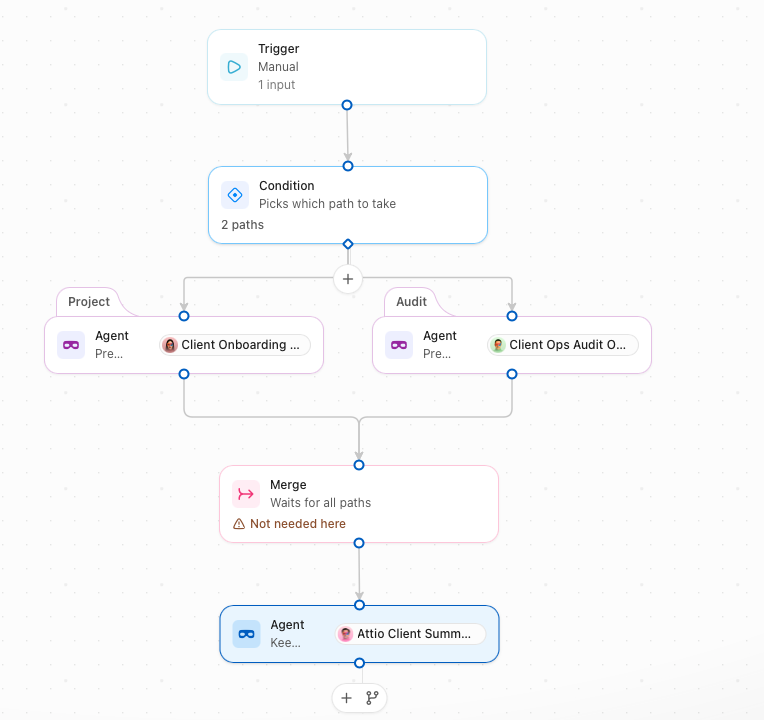
Easy way to think about it: automations follow rules, Workflows run a process. You don’t have to pick one. An automation can kick off a Workflow.
How to keep Workflows from eating your AI credits
Building a Workflow on the canvas yourself is free. If you have Brain build or edit it for you, that uses AI credits like any other Brain chat. When a Workflow runs, only the Agent steps use credits.
That makes Workflows cheaper than having one big agent run everything in your workspace, because in Workflows you only pay for the steps that actually need thinking. Instead of using an agent, try using a cheaper step wherever you can:
- Routing and triage: use a Condition instead of an agent
- Updating statuses, adding comments, and moving tasks: use Actions
- Pulling out fields or reformatting: use Transform
- “Wait a day, then follow up”: use Wait instead of an agent checking back
- Getting a sign-off: use Approval instead of an agent nudging people
- Repeating the same sub-process: build it once, then use Run workflow
What to know before you build one
- Workflows are still new. Some features are on the way, like changing statuses and posting comments as built-in steps and resuming after a delay. Test anything important before your team relies on it.
- Custom fields are partly supported. When an automation starts a Workflow from a task, agent steps can read that task’s custom fields. Actions can set a custom field.
- Connecting to other tools happens through agents. If your Super Agent is connected to an integration or custom MCP server, then you can use the external tool in your workflow. You can’t connect external tools directly in workflows yet.
- The AI model is set on each agent, not the Workflow. If a client prefers to avoid a certain AI model, choose the model in each agent’s settings.
- If you run out of credits, Agent steps pause until there are more.
- Use “ClickUp item” inputs for tasks and docs, not text. The agent gets the real item and can read its fields, which is more reliable than pasting a name or link.
Workflows are best for new, multi-step processes. For simple rules, a native automation is still the easier and cheaper choice.
Automations vs. Super Agents vs. Workflows
| Native automations | Super Agents | Workflows | |
|---|---|---|---|
| Best for | Simple “when this happens, do that” rules | Work that needs judgment or has to search your workspace | A whole process with several steps, decisions, and approvals |
| Uses AI credits | No | Yes | Only on Agent steps |
| Example | When status changes to Ready for Review, assign the reviewer | Sort incoming requests and draft replies | Sort a request, draft a reply, get manager approval, then send |
| Start here if | You do the same step by hand every week | A rule can’t make the decision | A process has handoffs and sign-offs |
Whichever you use, the order stays the same: business first, process second, technology third.
Frequently asked questions
Do ClickUp automations use AI credits?
No. Native automations don’t use AI credits. Super Agents do, and in a Workflow only the Agent steps do.
Do I need a paid ClickUp plan for automations?
Basic automations are available on every plan, but how many runs you get each month and which features you can use, like conditions, depend on your plan. Check your plan’s limits before you build anything critical.
What should I automate first in ClickUp?
Anything you do by hand every week: assigning tasks, moving work between stages, setting due dates, and onboarding new clients. Client onboarding is usually the best place to start.
What are ClickUp Workflows?
Workflows are ClickUp’s visual builder for multi-step processes. They connect AI agents, rules, human approvals, waits, and actions into one process, so you can automate work that has several steps and needs sign-off along the way.
Can an automation start a Workflow?
Yes. An automation can kick off a Workflow, and a Workflow can also start from an incoming webhook or run another Workflow.
Can ClickUp Workflows replace Zapier or Make?
For some processes, yes, especially ones that live mostly inside ClickUp. Incoming webhooks work today, but there’s no dedicated API step yet, so connections to other tools run through agents. For complex multi-app automations, Zapier or Make is still the more reliable choice for now.
Want help automating your ClickUp?
If you’re not sure where to start, or your automations aren’t doing what you hoped, I’d love to help. I’m Meagan B., a ClickUp expert, Verified ClickUp Consultant, and Certified Director of Operations. You can see client results in my case studies.
Book a free call → (it’s free, promise)