
The newer ClickUp features most worth using in a service business or small agency are My Tasks and the Inbox for starting your day in one place, Chat for keeping conversations next to the work, task types and the Custom Field Manager for making ClickUp fit how your business runs, and automations, AI fields, and Super Agents for taking manual work off your plate. Your Spaces, Lists, tasks, and custom fields are still the foundation of your workspace, so you can adopt these newer features one at a time.
Updated November 2026
ClickUp changes constantly. If you set up your workspace a year or two ago, a lot of it probably looks different now, and it’s hard to tell which new features are worth your time and which are just noise.
This guide covers the newer features I actually use with clients, organized by what they help you do, plus how I’d put them to work in a service business or small agency.
A quick note if you learned the older layout: ClickUp rolled out a new version of its interface (4.0) in December 2025 and moved every workspace onto it in March 2026. That’s why your sidebar, Home, and tasks look different. Your structure underneath didn’t change.
Start your day in one place
My Tasks and Personal Lists
What used to be ClickUp Home is now My Tasks. It has three pages:
- Assigned to me, for everything on your plate
- Today & Overdue, for what needs attention now
- Personal List, a private list for your own to-dos, with its own views
Why it matters: your personal to-dos don’t have to clutter your team’s lists anymore. Just be sure to keep these to tasks that are actually personal tasks for visibility purposes as no one else can see your personal tasks but you.
The Inbox and reminders
The Inbox is where notifications, reminders, and anything you’ve saved for later come together. Reminders are a quick way to capture small action items for yourself or someone else, without making a full task.
The Planner
The Planner gives you a place to plan your day and week alongside your tasks.
A sidebar you can set up your way
The sidebar on the left stays open wherever you are in ClickUp, and you can pin the features you use most, like Chat, the AI Hub, the Planner, and the App Center. The Home sidebar next to it holds your Inbox, Chat activity, drafts, channels, and My Tasks. You can choose what shows up, sort it into sections, and filter it.
Why it matters: fewer places to check. When your team starts every day in My Tasks and the Inbox, “what should I work on?” has one answer.
Keep conversations next to the work
Chat
Chat lives right in ClickUp, with channels and direct messages. You can turn a message into a task, connect it to existing work, and have AI summarize a long thread.
Why it matters: if your team’s work keeps getting lost in Slack threads, texts, or email, Chat brings those conversations next to the tasks they’re about.
Scheduled comments and emails
You can now schedule task comments, replies, and emails to send later. It’s handy for follow-ups you want to write now and send at the right time.
A cleaner task view and Docs
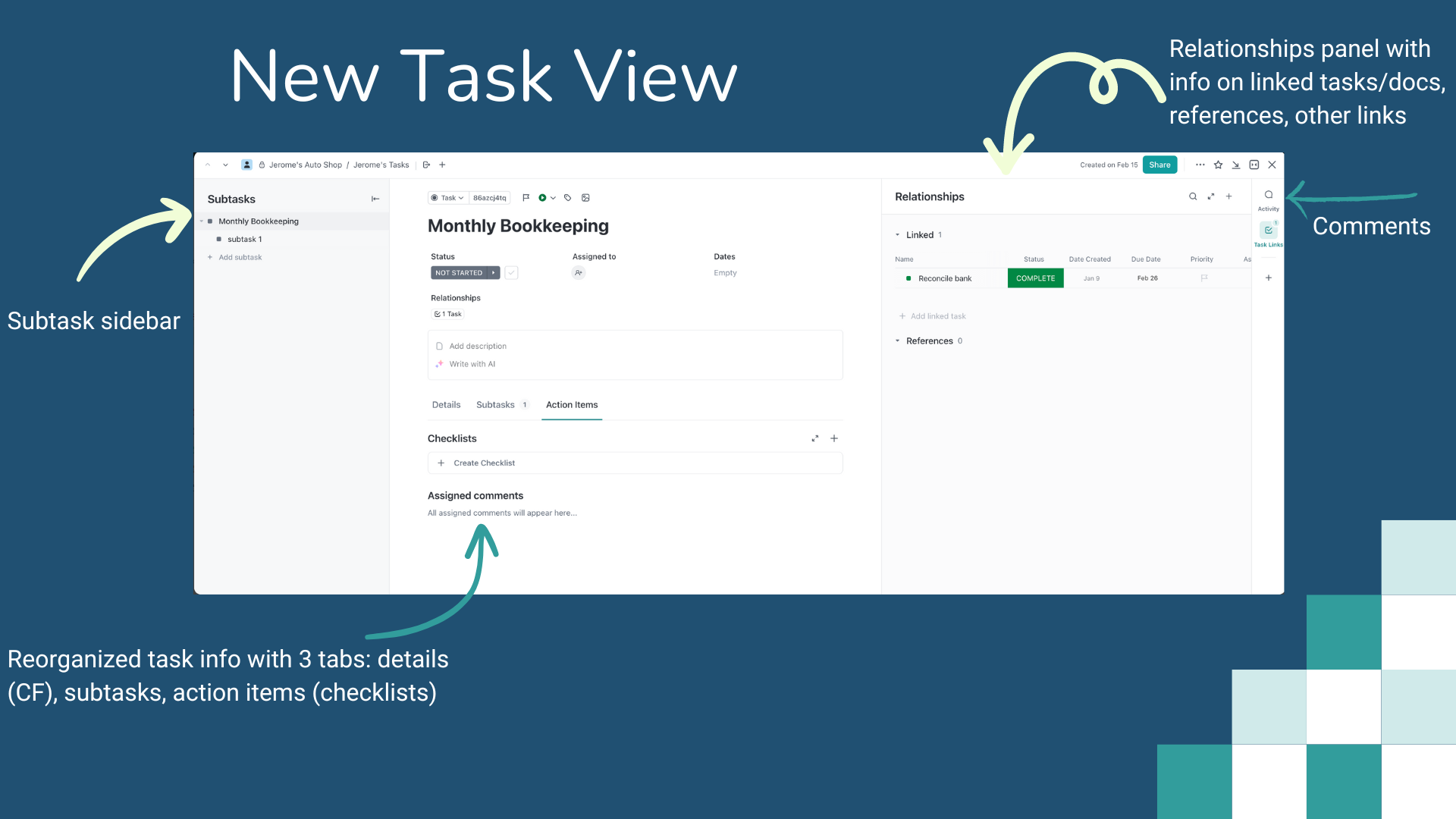
Tasks have collapsible sections and a right sidebar for comments, activity, integrations, and relationships. Docs got the same treatment, with comments in the right sidebar. The same layout carries over to the mobile app.
Why it matters: less scrolling, and it’s easier to see what’s happening on a task at a glance.
Make ClickUp fit how your business runs
Task types
Not everything in your business is a “task.” Task types let you name what an item actually is: a lead, a client, a candidate, a project, an inventory item. You can use more than one in the same list, then filter, group, report, and automate by type. You can also limit custom fields to specific task types, so a candidate only shows candidate fields.
Here’s where they help most:
- CRM: leads or contacts, with follow-up dates and stages, without a separate CRM tool
- Hiring: candidates, with resumes, interview notes, and decisions in one place
- Client work: projects or engagements, so bigger containers of work stand apart from one-off tasks
- Inventory or assets: items, stock, or recurring deliverables
Tip: set a default task type at the list level so new items come in consistent, and use task types in automations (when task type is Lead, assign it to sales).
The Custom Field Manager
If you’ve used ClickUp for a while, you probably have more custom fields than you need. The Custom Field Manager shows them all in one place, so you can filter, rename, add descriptions, reuse fields across lists, and (on higher plans) merge duplicates or convert field types.
When I audited one consulting agency’s workspace, a big part of the problem was structure, not features. Their statuses were doing too many jobs, and client stages were tracked as statuses instead of fields. Moving stages into a field made their dashboards and filters work.
Tip: add a short description to your most-used fields so your team knows how to fill them in.
Hubs and timesheets
The Docs, Dashboards, and Whiteboards Hubs have sidebars that make it faster to find and create things. They’re a good home for SOPs, meeting notes, and your key numbers. The Meetings Hub keeps your meeting notes searchable in one place.
Timesheets give you one view of tracked time, which helps with capacity planning and with seeing whether a client is actually profitable.
Take manual work off your plate
Automations
Automations are still the workhorse. ClickUp keeps adding to them, including a trigger for when a task name changes and new actions to rename a task and add a relationship.
Why it matters: many things people reach for AI to do can be handled by a regular automation, which doesn’t use AI credits at all. Status changes, assignments, due dates, and recurring tasks are all automation jobs.
AI fields
AI fields fill themselves in on each task from a short prompt. They can sort tasks into categories, summarize comments, or pick an assignee. I cover setup and prompts in my guide to ClickUp AI fields.
ClickUp Brain and Super Agents
ClickUp Brain can answer questions about your workspace, summarize work, and help you write. Super Agents go further: they’re AI teammates you set up once, and they do a job on their own, on a schedule or when something happens. They can search your workspace, work across tasks and Docs, and connect to other tools. Automations can trigger them too, with if/then conditions.
There’s also an AI notetaker for meetings.
Why it matters: this is where you can take real manual work off your plate. It’s also where it’s easiest to spend AI credits without meaning to. I wrote a whole guide on when to use automations, AI fields, Super Agents, or Claude.
How to put new features to work
New features are only useful if they support how your business actually works. Here’s how I’d approach them.
Start with your business, not the software. Get clear on how work moves through your business, where it gets stuck, and what you need to see. Then decide which features help. Business first, process second, technology third.
Clean up before you add more. Review your Spaces, statuses, custom fields, task types, and templates before layering on new features. Simpler structure makes everything else easier, including AI.
Automate the predictable work first. Save AI for work that actually needs judgment or has to look across your workspace.
Keep a person in the loop with AI. Let Super Agents draft, sort, and flag, and review what they produce until you trust it. Check your AI usage regularly so nothing runs more than you meant it to.
Add one feature at a time. Your team will actually use a new feature if they learn it on its own, not alongside five others.
Frequently asked questions
Why does my ClickUp look different?
ClickUp rolled out a new interface (version 4.0) in December 2025 and moved every workspace onto it in March 2026. The sidebar, Home, Inbox, and task view all changed. Your Spaces, Lists, tasks, custom fields, and automations work the same way underneath. New features are regularly added, so changes to your workspace are normal.
Where did ClickUp Home go?
It’s now called My Tasks. It has pages for tasks assigned to you, today and overdue work, and your Personal List.
Do I need to rebuild my workspace to use the new features?
No. Your existing setup carries over, and you can add new features one at a time. It’s still worth reviewing your structure, especially custom fields, statuses, and task types, since a cleaner setup makes the new features work better.
Can ClickUp replace my CRM or hiring tool?
For many small service businesses and agencies, yes. With task types and custom fields, you can build a simple CRM or applicant tracking system right inside ClickUp. Bigger sales teams with complex pipelines may still want a dedicated CRM.
Are ClickUp Super Agents worth using?
They are for work that needs judgment, has to search your workspace, or pulls in information from other tools. For predictable “when this happens, do that” steps, a regular automation is usually the better choice, and it doesn’t use AI credits.
How do I keep up with new ClickUp features?
ClickUp publishes release notes regularly. You don’t need to adopt everything. Pick the features that solve a problem you already have, and ignore the rest until you need them.
Want help making the new features work for you?
Whether your workspace has gotten messy or you’re not sure which features are worth your time, I can help you build a system that carries more of the load.
I’m Meagan, a Verified ClickUp Consultant and Certified Director of Operations. I help women-led service businesses and small agencies turn ClickUp into a simple system their team can run. You can see client results in my case studies or learn more about my services.
Book a free call → (it’s free, promise)